

Community

















For You
- How you frame an answer before diving into details
- How you define what you mean
- How you use examples and contrast
- Your natural word choice, cadence, and transitions from one idea to the next
- "Too formal.
- "I wouldn't say that."
- "You're overexplaining."
- "This sounds too polished."
- "Keep my reasoning, and challenge me if you disagree."
- To untangle a messy thought: "I'm going to talk this through. Don't try to solve it immediately. Listen to my reasoning first, then help me organize what I'm actually trying to say."
- To pressure-test your thinking: "Listen to my reasoning and tell me where you disagree or where there are gaps. Don't agree with me just because I'm leaning toward something."
- To find the right words: "You understand what I'm trying to say. Help me articulate it clearly without changing my reasoning or making it sound more polished than I naturally would."
- To trim the fluff: "What can I remove without losing the point?"
- 🔌 Protect your "off" switch: Pick a real end-of-day shutdown habit—close the tabs, write tomorrow’s top 3 priorities 📝, and step away from your desk so your brain knows work is done.
- 🗓️ Plan your personal life like a client calendar: If rest, workouts, errands, or family time aren't on the calendar, urgent tasks will quietly eat that time first.
- 💬 Communicate clarity, not constant availability: Being a reliable partner doesn't mean replying in 30 seconds at 9 PM 🌙. It means setting clear expectations so your executive knows what is handled and when you are back online.
Jump Back In
By the Blueprint
Using Slack at Athena
Connect Trello & Gmail: Save Time and Stay Organized!
Recently Viewed
Why Community Isn't Optional
in By the Blueprint
The Athena Mindset Check 1
in By the Blueprint
Foundations of Communication
in Using Slack at Athena
Working Smarter in Slack
in Using Slack at Athena
Course Completion
in AthenaSentry Training
AthenaSentry Training Knowledge Check
in AthenaSentry Training
AthenaSentry
in AthenaSentry Training
Content
Google Sheet Travel Planner
Individual Financial Statement
Personal Monthly Budget Template
Website Basics
Using Data the Way Leaders Do
Venture Capital 101
Meeting Management for Clients
KIKI: Kickoff Prep Co-Pilot
Posts
GP

Rovie Tungpalan
Bookkeeping Basics is now available in Agora for all Athena EAs!
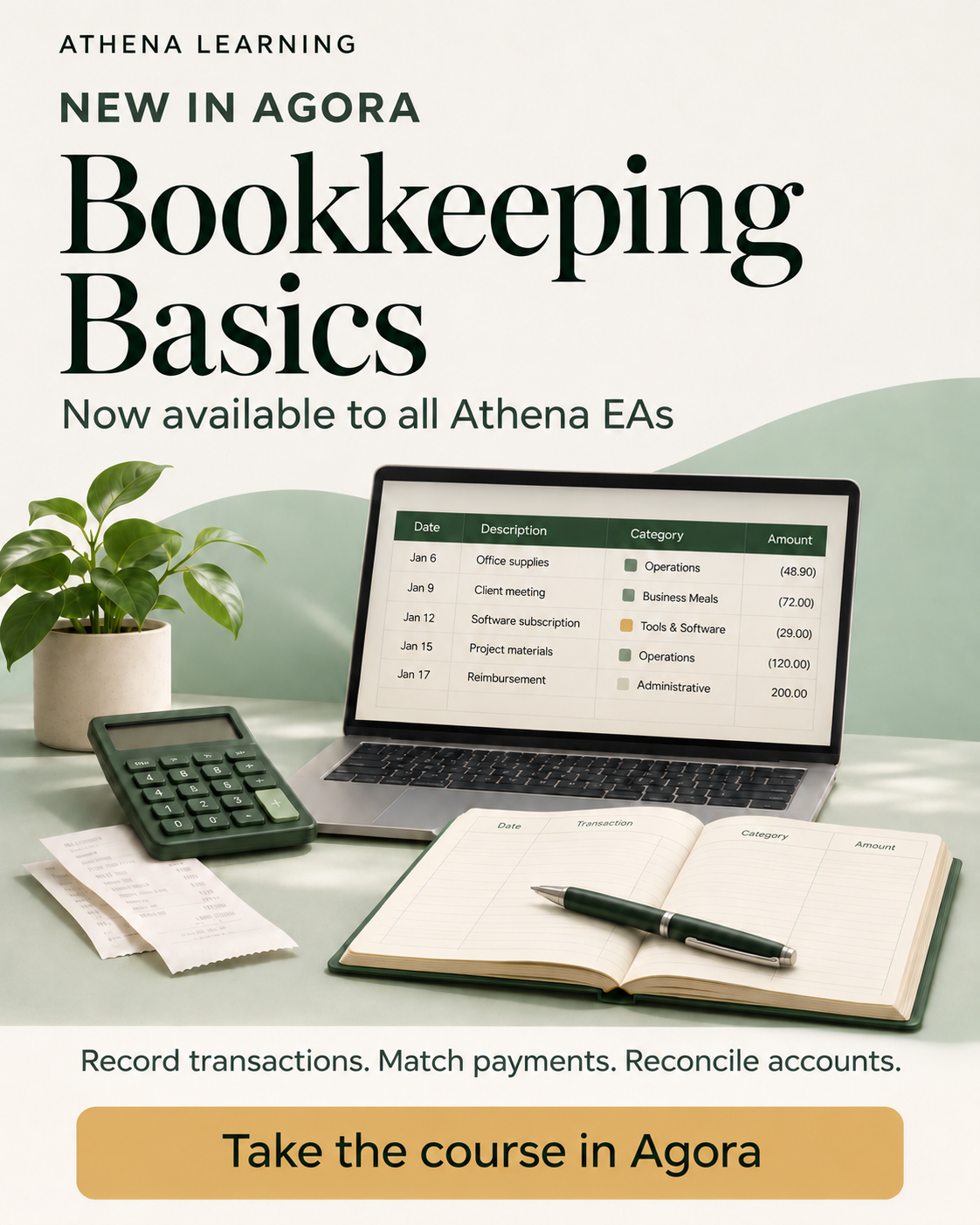
Build your bookkeeping know-how, one foundation at a time.
Learn the fundamentals, then practise recording transactions, matching payments, and reconciling an account—with a Gemini checker to help you review your work.
Whether you’re new to bookkeeping or refreshing your knowledge, start building a clearer understanding of the work.
👉 Take Bookkeeping Basics in Agora
JW
Jane Wanjiru
🎙️ Stop Trying to Describe Your Voice in One Giant Prompt—Teach GPT How You Actually Think
Most people try to teach AI their style by handing over a few polished emails or writing a long list of rules. The problem is that when we type or edit, we are already filtering ourselves.
Instead of trying to summarize your communication style all at once, you can let GPT learn how you naturally think, organize ideas, and choose your words by talking to it. Here is a simple, 5-step process to build your own custom voice inside ChatGPT:
Step 1: Create a Dedicated Project 📁
Start a new ChatGPT Project and give it a clear name (for example, "[Your Name]'s Voice"). Having one dedicated space keeps all your voice training conversations, examples, and instructions together in one place.
Step 2: Let GPT Interview You (Using Voice Dictation) 🗣️
Rather than feeding GPT pre-written text, ask it to interview you one question at a time while you answer out loud using voice dictation. Don't prepare a script or try to sound polished—ramble a little, change your mind, and explain things the way you normally would.
Copy & paste this prompt to start:
"Let's do something fun. Ask me five questions that would take me about two minutes each to answer. Ask one question at a time. I'll answer using voice dictation so you can hear how I naturally organize my thoughts, explain ideas, and choose my words. After each answer, analyze what you notice about my natural communication style before giving me the next question."
Step 3: Let GPT Spot Your Natural Patterns 🔍
Because you are speaking off the cuff, GPT picks up on habits that polished emails never show:
Step 4: Keep Correcting It in Real Time ✍️
The initial five-question interview isn't the finished product. As you keep using your Project, call out anything that feels off right away:
Every small correction sharpens what your voice actually means.
Step 5: Turn What It Learned Into Permanent Rules 📋
Once GPT has enough examples and feedback from you, ask it to lock in what it has learned:
"Based on everything you've learned from my answers, our conversations, my writing, and the corrections I've given you, summarize the rules you should follow when helping me write or communicate. Focus on the patterns that genuinely distinguish my voice rather than generic writing advice."
Review the summary and tweak anything that isn't quite right.
💡 How Your Workflow Changes Once Your Voice Is Built
Once your Project understands how you think, you stop worrying about crafting "perfect" prompts. You can simply hit voice dictation and think out loud—even when your thoughts are messy:
Instead of replacing your thinking, AI becomes a true thought partner: You talk → GPT listens → You challenge and refine → GPT helps structure → You make the final call.
Over to you: Have you ever tried using voice dictation to train your AI on how you naturally speak, or do you mostly rely on typed prompts? 👇
JW
Jane Wanjiru
The Secret Weapon of Multi-Tasking: Teaching Your AI to Write in Your Exact Voice
Have you ever looked at a message drafted by your AI assistant and immediately thought: “Yeah, I could never send that. It sounds nothing like me.”
You’re not alone. Many times we get excited about using artificial intelligence, only to abandon it because the drafts sound too robotic, overly formal, or just completely wrong for our personal brand.
But here’s the game-changing secret: the key isn’t to wait for AI to get better at guessing; it's to teach your AI your exact voice.
Here’s why taking the time to give your AI your unique personality is worth the effort, and how it can supercharge your productivity:
1. 🚀 Transforming Speed into True Quality
Anyone can generate a quick response with AI. But if you have to spend fifteen minutes heavily editing a 100-word email just to make it sound human, you’ve lost the efficiency advantage.
When your AI is trained on your exact voice—the specific way you say "thank you", the transition words you prefer, your natural cadence—the draft is ready on the first try. You go from a heavy re-writer to a quick reviewer, saving you hours every week.
2. 🤝 Keeping Your Relationships Genuine
As professionals, especially in collaborative support roles, our relationships are built on authentic trust. If your network receives an email that feels sterile or unusually cold, they notice the change immediately.
Teaching your AI to adopt your natural warm, friendly, or direct tone ensures that even when you are getting a boost from technology, your unique personality and warmth remain intact. You stay you—even on busy, high-volume days.
3. 🎯 Scaling Your Thought Leadership
By sharing your true voice with your AI, you can easily turn voice memos, brief bullet points, or casual conversations into polished LinkedIn posts, team updates, or strategic summaries. You no longer have to struggle with writer's block or worry about how to word a complex idea; your AI handles the heavy lifting while preserving your authentic voice.
🛠️ Ready to try it? Here’s a quick exercise:
Take 2 or 3 of your favorite sent emails and post them into your AI tool with this simple prompt:
“Analyze the tone, style, and vocabulary of these messages. This is my voice. I want you to adopt this style for all our future communication.”
Letting your AI speak for you starts by teaching it to speak like you.
Over to you: Have you tried training your AI on your specific writing style, or do you still find yourself heavily editing every draft? Share your thoughts below! 👇
JK
Jackline Kariuki
Level Up Your Google Workspace Skills: Build an Automated Certificate Generator
Hey there, Agora fam! 👋
If you’ve mastered the core EA basics and want to start building time-saving automations in Google Workspace—whether for internal team trainings, webinars, or your client’s workshops—this intermediate Google Apps Script challenge is a great place to level up. 💡
Instead of manually typing names onto templates, exporting PDFs one by one, and attaching them to individual emails, you can automate the entire workflow using Google Forms, Docs, Drive, and Gmail.
🎯 The Challenge Build an end-to-end Automated Certificate Generator triggered by a Google Form submission. When an attendee submits the form, your script should automatically:
1️⃣ Capture Submission Details 📋 Pull the attendee's name, email address, course title, and completion date from the linked Google Sheet.
2️⃣ Clone & Personalize a Template Doc 📝 Duplicate a master Google Doc certificate template and replace placeholders like {{Name}}, {{Course}}, and {{Date}} with the attendee's actual details.
3️⃣ Export & Organize the PDF 📂 Convert the personalized Doc into a clean PDF inside a dedicated Google Drive folder (and clean up the temporary Doc copy).
4️⃣ Email the Certificate Automatically ✉️ Send a customized congratulations email directly to the recipient with their PDF certificate attached.
🛠️ Prompt to Copy & Build With Want the exact step-by-step setup guide, starter code, and debugging tips? Copy and paste this prompt into Gemini:
"I want an intermediate-level Google Apps Script practice challenge. Guide me through building a Certificate and sending it to the respective email adresss triggered by a Google Form submission. Please provide: 1. An outline of the setup: Form inputs, a template Google Doc with placeholders (e.g., {{Name}}, {{Course}}), and a destination Google Drive folder. 2. An onFormSubmit script that captures form responses, duplicates the template Doc, replaces placeholders with actual values, and converts the document to a PDF in Google Drive. 3. Common pitfalls with Drive/Docs quotas and permissions, and how to handle them cleanly. 4. Test instructions and debugging tips using Apps Script's built-in execution log."
📎 Complete Starter Kit & Reference Guide To make it even easier to get started, I put together a step-by-step reference guide with a sample Google Form structure, a certificate template layout, the complete Apps Script code, and setup instructions: 👉Automated Certificate Generator Starter Kit(Make a copy to test and customize!)
🌟 Pro-tip: Make sure you call doc.saveAndClose() right after replacing your placeholders and before converting the file to a PDF—otherwise, Apps Script exports the cached version and your PDF will still show blank {{Name}} tags! Also, remember to set up an installable On form submit trigger under the Triggers tab so Gmail and Drive have permission to run.
💬 Give it a try and drop your questions, tweaks, or wins in the comments below—or let us know what repetitive task you’d love to automate next! 👇
#ExecutivePartners #GoogleAppsScript #WorkflowAutomation #GoogleWorkspace #AthenaEAs
JW
Jane Wanjiru
⚖️ Why "Work-Life Balance" Feels Broken for EAs (And What Works Better)
For a long time, I thought work-life balance meant splitting every day cleanly down the middle: 50% work, 50% personal life.
As Executive Assistants, we know real life rarely cooperates with a neat 50/50 split. Some weeks bring late board prep or sudden travel changes ✈️; other weeks are calmer and give us room to breathe 🌿. When I chased a rigid daily split, I ended up feeling guilty at work and distracted at home.
What actually changed things for me was shifting from daily balance to intentional boundaries 🧭:
✨ True balance isn't about doing everything at once—it's about being fully present wherever you are.
Over to you: What is one small boundary or habit that helps you truly unplug after a busy workday? 👇